
How to Protect Your Data Online
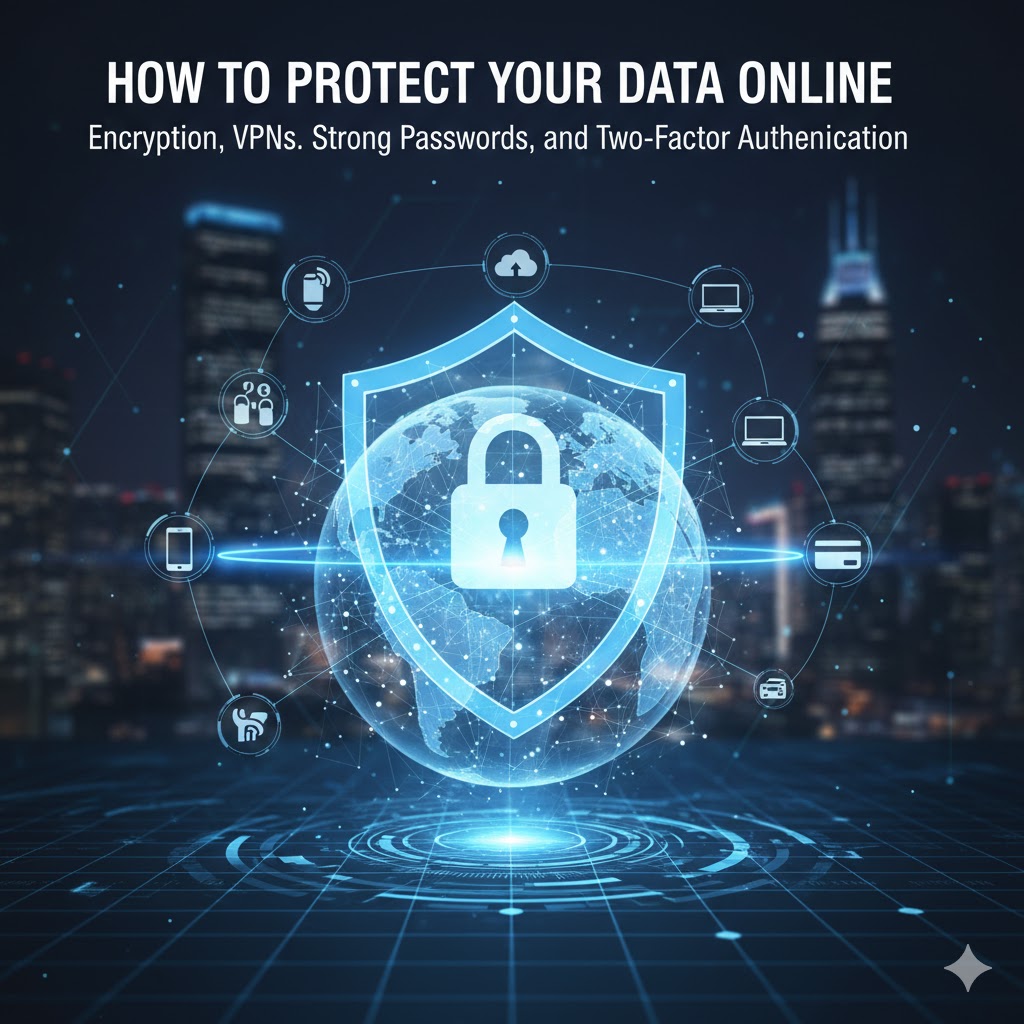
1. Use Strong, Unique Passwords
- Create complex passwords: At least 12–16 characters, mixing uppercase, lowercase, numbers, and symbols.
- Never reuse passwords across sites.
- Use a password manager: Tools like Bitwarden (free/open-source), 1Password, or LastPass generate and store strong passwords securely.
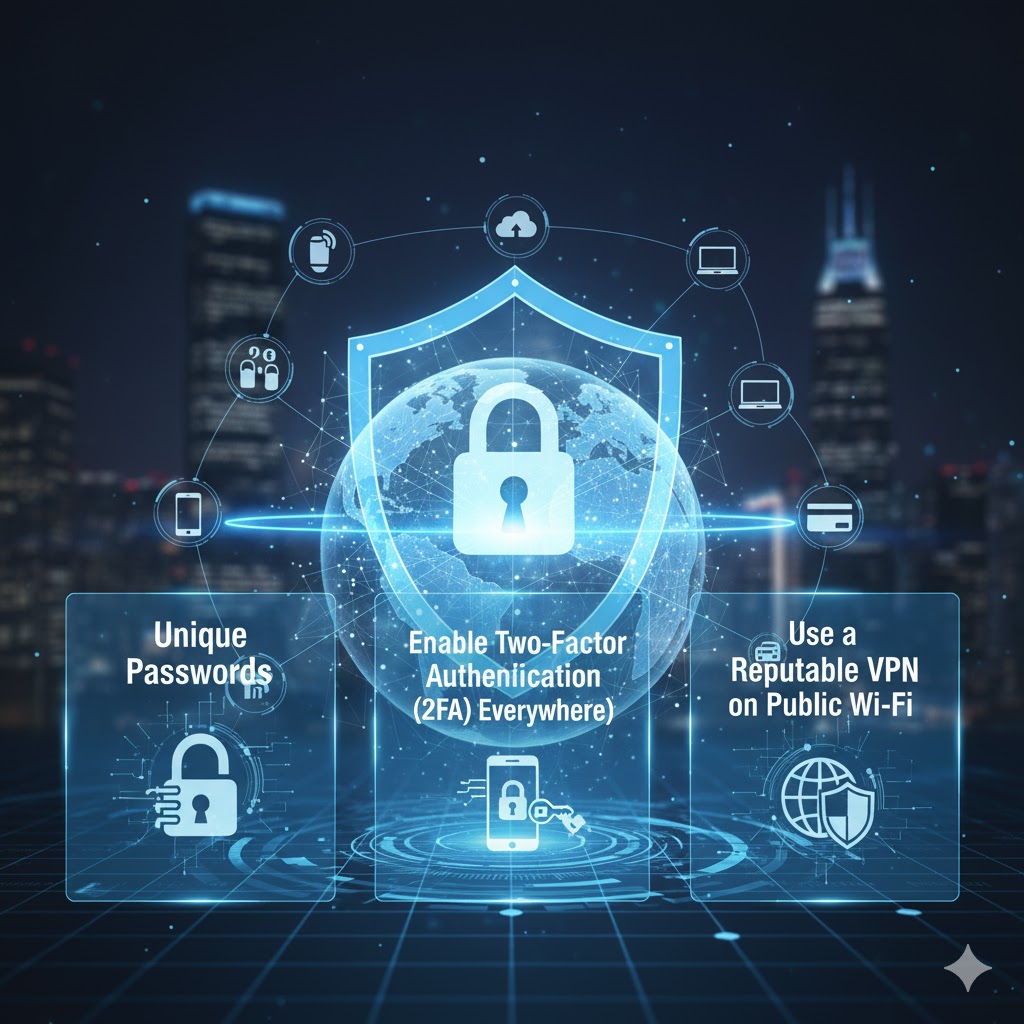
2. Enable Two-Factor Authentication (2FA) Everywhere
- Use authenticator apps (Google Authenticator, Authy, Microsoft Authenticator) instead of SMS.
- Avoid SMS 2FA when possible — it’s vulnerable to SIM-swapping attacks.
3. Keep Software & Devices Updated
- Enable automatic updates for:
- Operating systems (Windows, macOS, iOS, Android)
- Browsers (Chrome, Firefox, Safari)
- Apps and plugins
- Outdated software = known vulnerabilities hackers exploit.
4. Use a Reputable VPN on Public Wi-Fi
- Public Wi-Fi (cafes, airports) is often unencrypted.
- Use a no-log VPN like:
- ProtonVPN (free tier available)
- Mullvad (privacy-focused, cash payments)
- NordVPN or ExpressVPN (paid, user-friendly)
- Avoid banking or sensitive logins on public networks without a VPN.
5. Browse Securely
- Use HTTPS websites (padlock icon in address bar).
- Install uBlock Origin (ad/tracker blocker) on your browser.
- Use privacy-focused browsers:
- Firefox (with strict tracking protection)
- Brave (blocks ads/trackers by default)
- Avoid clicking suspicious links or downloading unknown files.
6. Secure Your Email
- Use end-to-end encrypted email if possible:
- ProtonMail or Tutanota (free encrypted inboxes)
- Never open attachments or click links in unexpected emails.
- Set up email aliases (e.g., SimpleLogin, AnonAddy) to mask your real address.
7. Limit Data Sharing
- Review app permissions — deny access to camera, microphone, location if not needed.
- Use privacy settings on social media (limit who sees posts, disable ad tracking).
- Opt out of data brokers:
- DeleteMe, PrivacyDuck, or manually request removal from sites like Spokeo, Intelius.
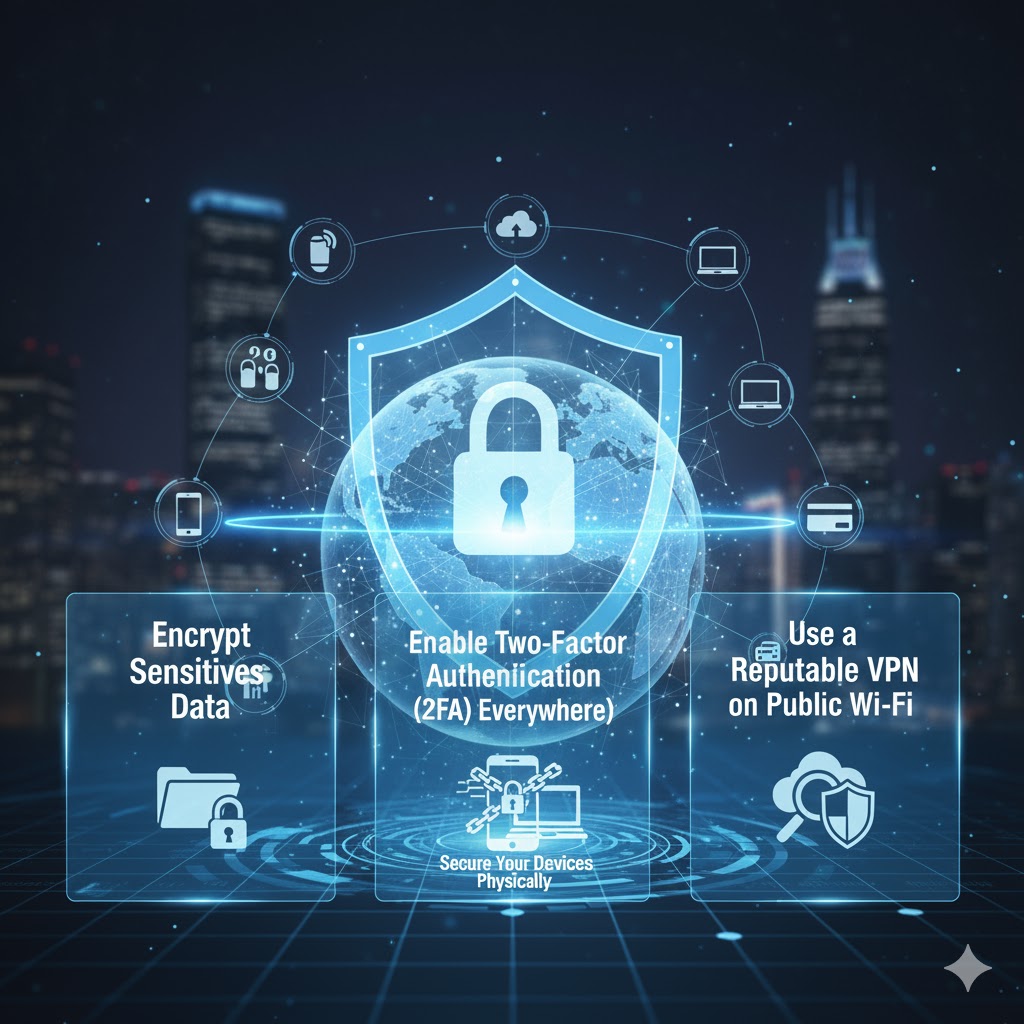
8. Encrypt Sensitive Data
- Full-disk encryption:
- Windows: BitLocker
- macOS: FileVault
- Android/iOS: Enabled by default with passcode
- Encrypt backups (external drives, cloud) with tools like VeraCrypt (free).
9. Be Phishing-Aware
- Hover over links to check URLs before clicking.
- Verify sender emails (e.g., support@goog1e.com ≠ Google).
- Use email filters and mark spam aggressively.
10. Backup Important Data Securely
- Follow the 3-2-1 rule:
- 3 copies of data
- 2 different storage types
- 1 copy off-site (encrypted cloud or external drive)
- Use encrypted cloud backups (e.g., Proton Drive, Cryptomator + Dropbox).
11. Secure Your Devices Physically
- Use strong PINs or biometric locks (fingerprint/face ID).
- Enable remote wipe (Find My iPhone, Android Device Manager).
- Avoid leaving devices unattended in public.
Pingback: Social Media Regulation in Pakistan and cyber crime Loose - Fact Hub
Your article helped me a lot, is there any more related content? Thanks!