
10 Hidden Features of Your Android Phone
Android phones are packed with under-the-radar tricks that can supercharge your daily use—from boosting privacy to saving battery and multitasking like a pro. Whether you’re on Android 15, 16, or a custom skin like OnePlus OxygenOS, these features work on most devices (check your version in Settings > About phone). I’ve curated the top 10 based on the latest updates, focusing on ones that fly under the radar. Let’s dive in!
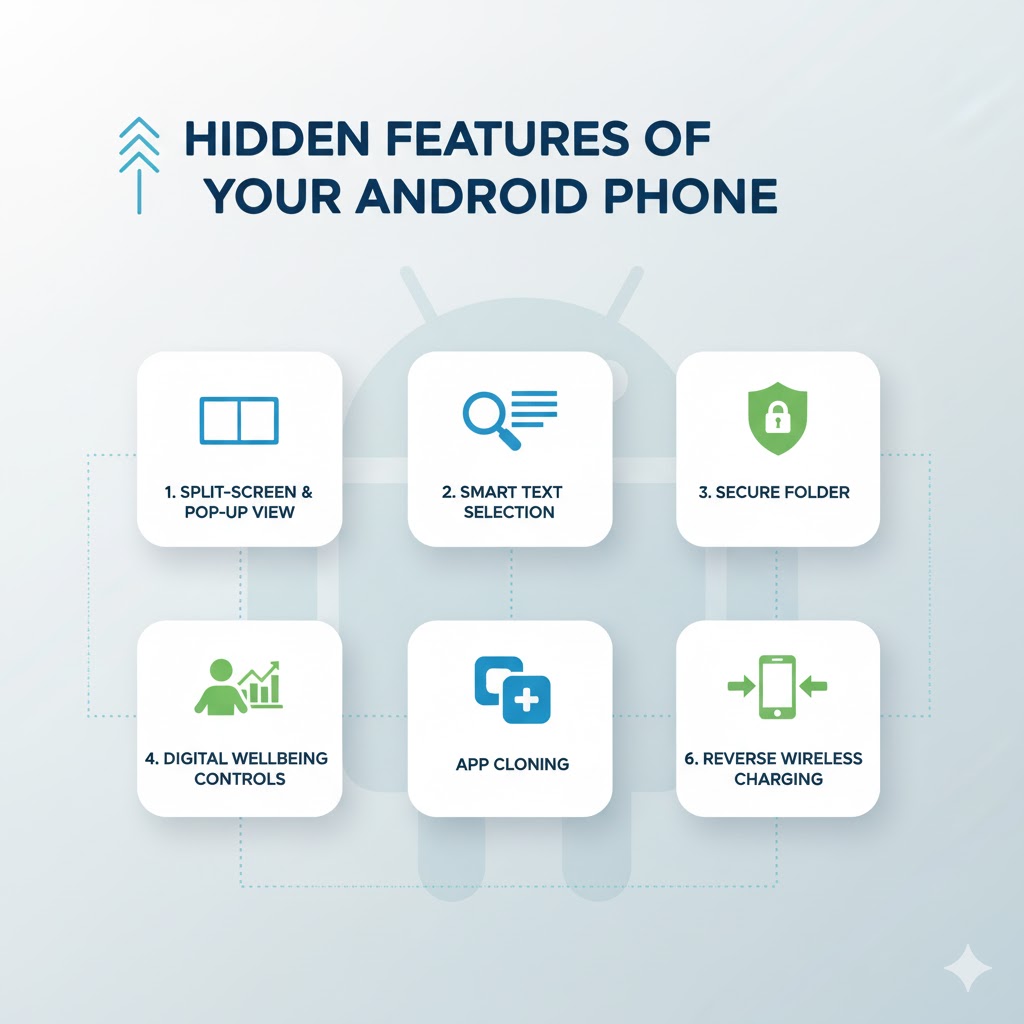
1. Theft Detection Lock (Auto-Lock on Snatch)
- What it does: Uses your phone’s accelerometer and gyroscope to detect if someone’s grabbed it and starts running, biking, or driving away. It auto-locks the device to prevent unauthorized access.
- How to enable: Go to Settings > Safety & Emergency > Theft protection (or search “Theft Detection” in Settings).
- Why it’s hidden: Buried in security menus; rolled out widely in 2025 with Android 15+.
- Pro tip: Pair it with offline Find My Device for remote wiping if needed.
2. Private Space (Hidden App Vault)
- What it does: Creates a separate, locked profile for sensitive apps (e.g., banking or dating apps) that’s invisible to others. It requires a different PIN or biometrics to access.
- How to enable: Settings > Security & privacy > Private space > Set up with your lock method.
- Why it’s hidden: New in Android 15 (2025 stable release); feels like a secret folder but with full app cloning.
- Pro tip: Great for shared family phones—apps in Private Space don’t show in your main app drawer.
3. App Hibernation (AI-Powered Battery Saver)
- What it does: Android’s on-device AI scans unused apps and puts them into a low-power “hibernation” mode, freeing up RAM and battery without deleting data.
- How to enable: Settings > Battery > App hibernation > Toggle on and review AI suggestions.
- Why it’s hidden: Runs silently in the background; you only see it when tweaking battery stats.
- Pro tip: Whitelist essentials like messaging apps to avoid interruptions—saves up to 20% more battery on idle days.
4. Live Location Sharing in Find Hub
What it does: Quickly share your real-time location via a map link with trusted contacts (e.g., family during emergencies). Set expiration times and get reminders to stop sharing.
How to enable: Open Find Hub app (pre-installed) > Tap “Share location” > Select contacts and duration. Why it’s hidden: Tucked into the Find My Device ecosystem; enhanced in Android 16 for 2025.
Pro tip: Works cross-platform (Android/iOS) and offline via satellite on supported devices like Pixels.
5. Quick Share Audio (Dual Bluetooth Pairing)
What it does: Pair two Bluetooth headphones or speakers to your phone simultaneously for shared listening—perfect for movies or workouts with a buddy.
How to enable: Settings > Connected devices > Connection preferences > Bluetooth > Pair first device, then long-press the second in the list and select “Share audio.”
Why it’s hidden: Requires Android 16+; not advertised but a game-changer for audiophiles.
Pro tip: Syncs volume across devices automatically—test with free apps like YouTube Music.
6. Notification History Log
What it does: Keeps a record of all dismissed notifications (e.g., missed texts or alerts) so you can revisit them without asking “What was that?”
How to enable: Settings > Notifications > Notification history > Turn on. Why it’s hidden: Opt-in only; feels like a debug tool but saves endless “Did you see my message?” convos.
Pro tip: Filter by app—super useful for busy parents or multitaskers.
7. Back Tap Gestures (Quick Actions)
What it does: Double- or triple-tap the back of your phone to launch the camera, screenshot, or open apps—no fumbling for buttons.
How to enable: Settings > System > Gestures > Quick tap (Pixel/OnePlus) or enable Developer Options first (tap Build number 7x in About phone).
Why it’s hidden: Varies by manufacturer; expanded in 2025 updates for more actions like flashlight toggle.
Pro tip: Customize for productivity—e.g., tap to open Google Assistant.
8. App Pairing for Split Screen
- What it does: Link two apps (e.g., YouTube + Notes) to open in split-view mode from one icon—ideal for research or recipes.
- How to enable: Long-press an app icon in your drawer > Select “App pair” > Choose second app > Save to home screen.
- Why it’s hidden: Not all launchers show it; a 2025 tweak for multitasking pros.
- Pro tip: Works on tablets too—boosts efficiency without third-party apps.
9. Satellite SOS Messaging
What it does: Send texts or emergency alerts via satellite when you’re off-grid (no cell/Wi-Fi)—auto-switches for hiking or travel.
How to enable: Settings > Network & internet > Satellite messaging > Toggle on. Why it’s hidden: Limited to newer flagships (e.g., Pixel 9+); lifesaver in remote areas.
Pro tip: Test in airplane mode; integrates with emergency contacts.
10. Developer Options Tweaks (Power User Mode)
- What it does: Unlock advanced settings like forcing 120Hz refresh rate, USB debugging, or max Bluetooth connections—turns your phone into a tweaking playground.
- How to enable: Settings > About phone > Tap “Build number” 7 times > Return to Settings for new “Developer options” menu.
- Why it’s hidden: Designed for devs, but everyday wins like animation speed sliders make scrolling buttery smooth.
- Pro tip: Start safe—toggle “Force peak refresh rate” for snappier UI without draining battery.
Bonus: Android Secret Codes for Instant Access
*##4636##*: Phone info & battery stats.
*#06#: IMEI number.
*##7780##*: Factory reset (backup first!). Full list in resources below.